
Welcome to ScheduleCleaner™
Introduction
ScheduleCleaner™ is a stand-alone application that allows you to modify certain project categories and save these changes into new project file. Project Schedulers and managers with ScheduleCleaner™ have the ability to remove confidential data from the project file and personalize the information in the file according to specific stakeholders’ needs.
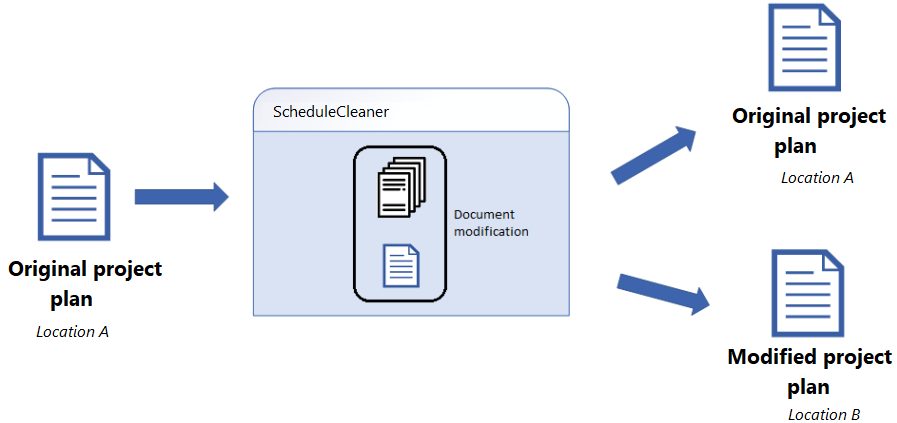
ScheduleCleaner™ will not change the original project plan that is exported from the Primavera® P6 database. It will make a copy of it and the modifications that are done will be saved in the newly created file.
Videos and tutorials
Quick video tutorials with tips and tricks for getting the most out of ScheduleCleaner™. These walkthroughs are perfect to learn how to use ScheduleCleaner™.
Support and documentation
We recommend you to visit our page https://schedulecleaner.com/ to find more documents and videos about ScheduleCleaner™.
What’s new in ScheduleCleaner™?
What’s new in ScheduleCleaner™ version 3.6
New Features:
- Filters for UDFs and Activity Codes in “Remove” category
- Filters for UDFs and Activity Codes in “Mask” and “Prefix/Suffix” categories
- Update Output file version
- Hosted Floating license
Improvements:
- Improved work with filters on the other supported languages
- Resolved client issues
Getting started with ScheduleCleaner™
Workspace
After installing and starting ScheduleCleaner™, you will see user interface as it is presented in the figure below.
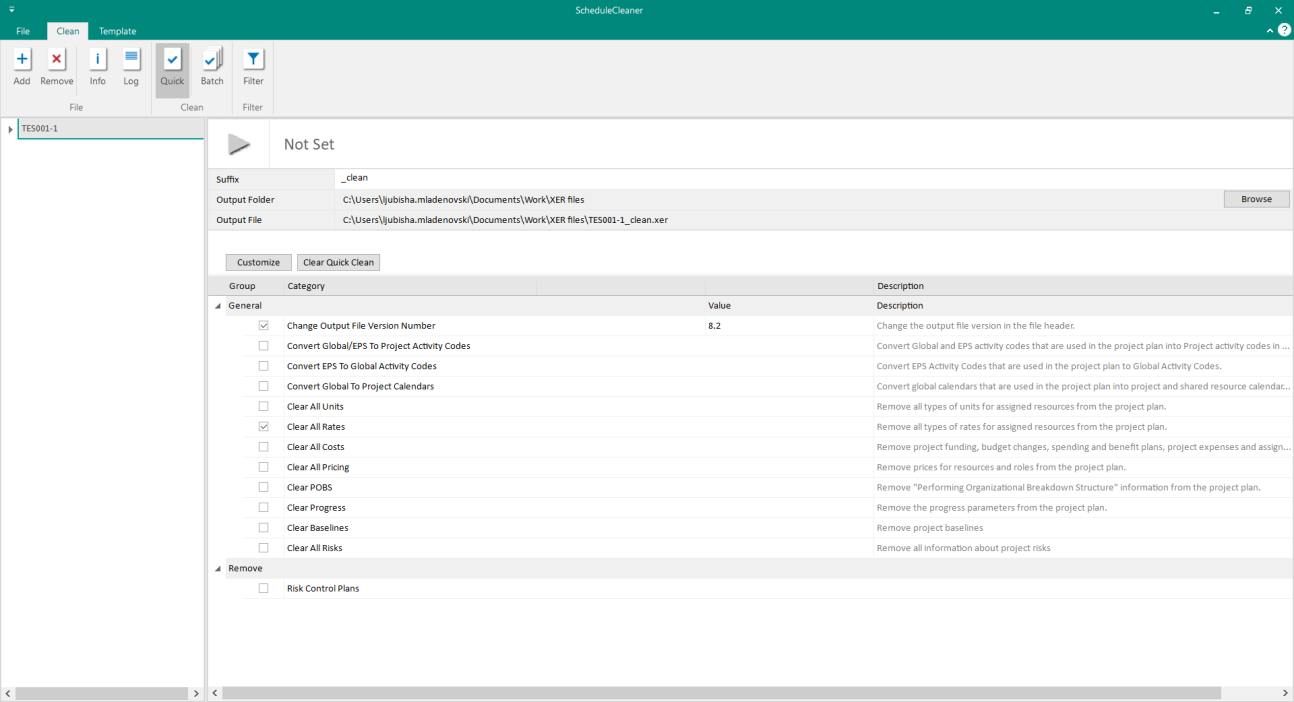
The main elements of the ScheduleCleaner™ user interface are:
- Ribbon – containing all commands available in the application, grouped by the type of action. Detail explanation of the commands is given later in this chapter.
- File bar – special type of view, with list of files that will be modified.
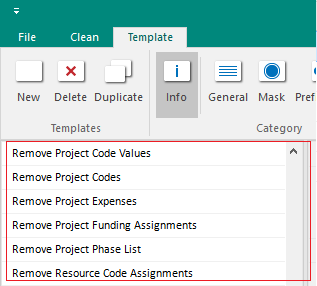
- Template bar – also, special type of view, containing list of all templates that are created in the application.
- Working area – space where the necessary modifying adjustments are made.
Ribbon
All application features are placed in the ribbon, at the top of the screen, grouped by their similarities and functionalities. The main windows in ScheduleCleaner™ are given in different ribbons:
- Clean – import projects files and clean specified project parameters.
- Template – fulfill the forms that will allow to clean different project parameters.
The Ribbon is designed to help you quickly find the functionalities that you need to complete an action.
You can expand the ribbon to view all functionalities in an active tab or minimize the ribbon to extend the workspace. Use the shortcut key CTRL+F1 to perform this action.
“File” bar
“File” bar is located in the left side of the application when “Clean” ribbon is selected. It displays a list of all files that are imported in the application and scheduled for modification. Only project plans in.xer or xml file format can be uploaded in ScheduleCleaner™.
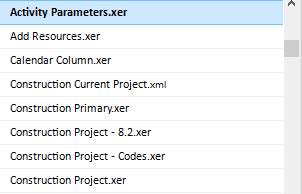
“Template” bar
Similar to the “File” bar, the “Template” bar contains a list of all templates that are created.
Style
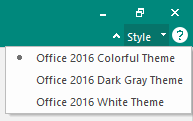
You can change the application theme from Style drop down menu placed in the upper right corner of the screen.
Application Elements
Clean View
When you add file in ScheduleCleaner™ it will be shown in the view on the left side. Here you have a list of all the files that can be modified and the available options you can use to the file.
Clean tab
The look of the Clean ribbon is presented on the image below:

The following functionalities are placed in the Clean ribbon:
| Add | Add xer/xml files in the application |
| Remove | Remove the already added files from application |
| Info | View general information for the selected file, such as path, version, creation date, currency and author |
| Log | View the events that has been occurred in the software. |
| Quick Clean | Remove all parameters from one category in the project plan, that can be considered as confidential, such as: units, rates, costs or prices. |
| Batch Clean | Use templates for cleaning, masking or adding prefix/suffix to different project parameters. |
| Filter | Apply operators and insert values that will define the set of rules for filtering the data in the Mask and Prefix/Suffix category. |
Customize the Quick Clean
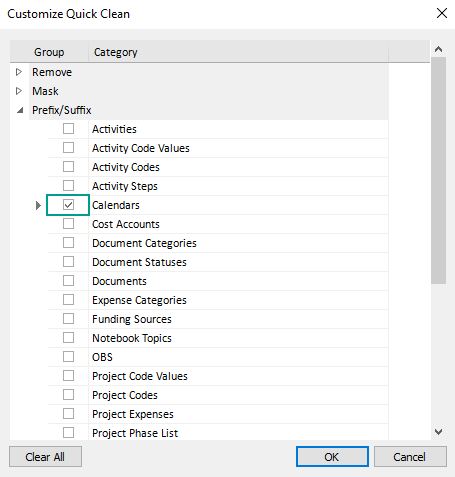
Users will be able to customize the Quick Clean Options by clicking on the Customize button.
Parameters from the following categories can be added in the Quick Clean: Remove Category; Mask Category; and Add Prefix/Suffix category.
The look of the Customize Quick Clean dialog box is presented below:
Template View
Here you can define the templates with the rules that will be used to modify XER or XML files.
Template tab
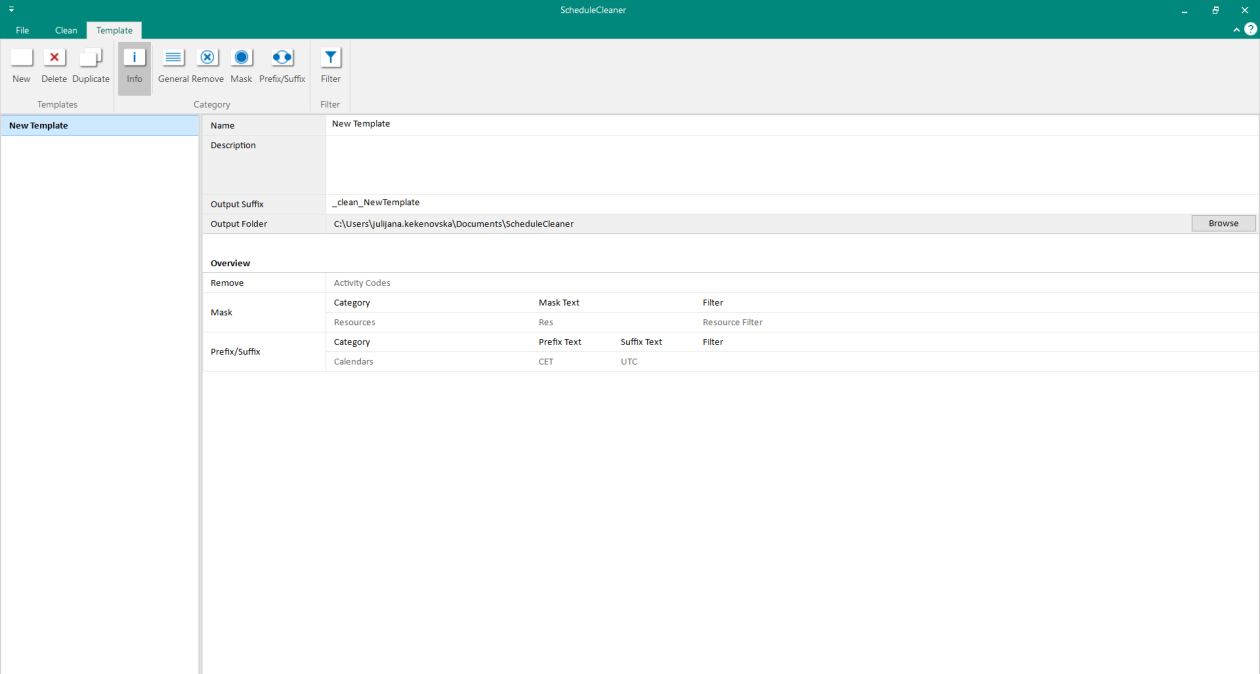
The look of the Template ribbon is presented on the image below:

The following functionalities are placed in the Template ribbon:
| New | Create new template for editing project file |
| Delete | Remove already created templates from application |
| Duplicate | Make a copy of the template |
| Info | View general information for the selected template, such as template’s name, description, output suffix and output folder. |
| General | Remove all parameters from one category in the project plan, that can be considered as confidential, such as: units, rates, costs or prices. |
| Mask | Cover-up the values from particular project category with user-defined value. |
| Prefix/Suffix | Insert prefix or suffix to different categories in the project plan, in order to give additional information |
| Remove | Remove sensitive project data from the project plan |
| Filter | Apply operators and insert values that will define the set of rules for filtering the data in the Mask and Prefix/Suffix category. |
How ScheduleCleaner works
Process Overview
ScheduleCleaner™ modifies certain project categories and will not change original XER/XML file that is exported from Primavera P6 database. Instead, it will make a copy of the project plan and modification that are done will be saved in the newly created file.
The process workflow for single file is presented on the following image:
- Project plan is imported in ScheduleCleaner;
- Choose how the sensitive project data will be removed from the project plan;
- In case of “Quick” clean, cleaning options are selected;
- In case of “Batch” clean, templates that contains information for removing, masking data, adding suffix or prefix are prepared and saved within application;
- According the specified options, templates and rules, new, modified project file is created;
- The initial project plan remains unchanged.
It is very important to know that with the help of ScheduleCleaner™, users can not change the architecture of the project plan, meaning that:
- New activities cannot be added in the project plan;
- Existing activities cannot be removed from the project plan;
- Resources cannot be added or removed in the project plan;
- Assigning resources and roles cannot be done.
Clean feature
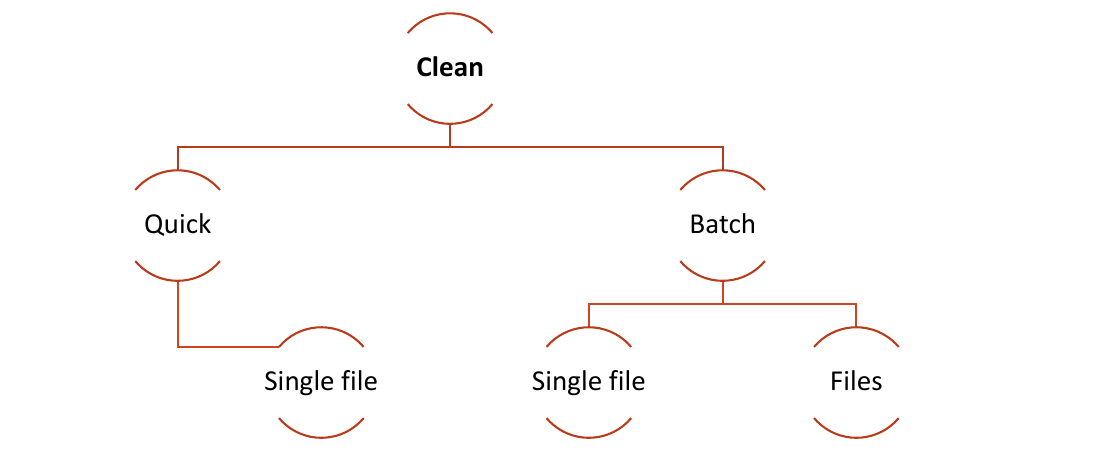
There are two cleaning types implemented in ScheduleCleaner™:
- Quick Clean;
- Batch Clean.
Depending from the current need, user can use one of the mentioned cleaning types, but not both at same time. “Quick Clean” is more suitable when user wants to modify very small number of project files, while “Batch Clean” is useful when large number of files, usually located in different folders, need to be modified.
Clean
| Quick | Batch |
Single file Single file Files
Quick Clean
“Quick Clean” is useful when project manager wants to clean all parameters from one category in the project plan, that can be considered as confidential, such as: units, rates, costs or prices.
Batch Clean
“Batch Clean” works with templates. User must create at least one template and assign it to a file in order to use the batch file cleaning.
ScheduleCleaner allows applying multiple templates to a file or group of files.
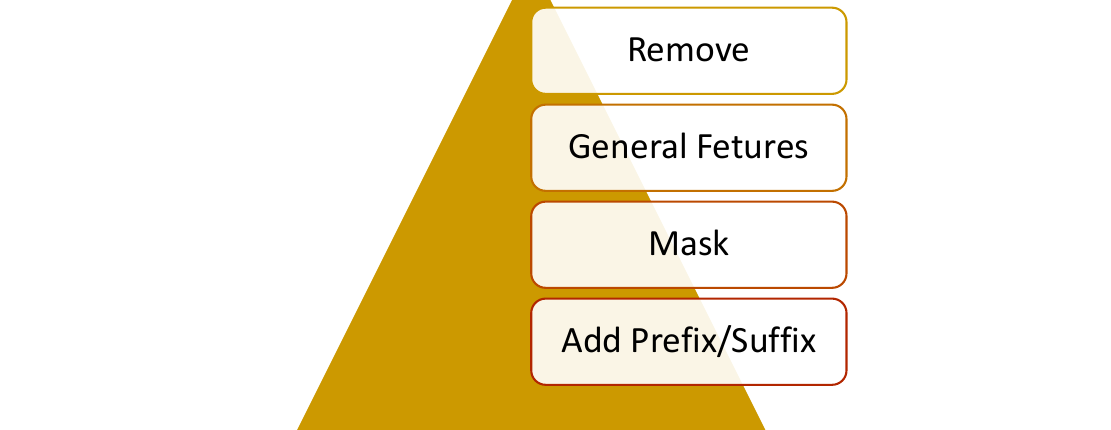
“Remove” is the functionality with the highest priority. This means that in case when multiple templates are assigned to a group of files, the template that has remove functionality in it will have the highest priority while executing the specified actions.
Hierarchical presentation of the features that are implemented in the “Category” group within Template ribbon is given on the image below.
Remove
General Features
Mask
Add Prefix/Suffix
Clean project parameters with Quick Clean
Import file location
In ScheduleCleaner™ you can import project data exported from Oracle Primavera® P6 in XER or XML (Oracle proprietary format) file format.
There are three ways how you can open file:
- From File click to Add File and select file from your location
- Drag and drop file in main window of ScheduleCleaner™.
From Clean ribbon click on the Add icon and select file from any location.
Perform Quick Clean
Quick cleaning of project parameters can be performed in four steps:
- Select the “Quick Clean” from the Clean ribbon;
- Select the options that will be used in the cleaning process;
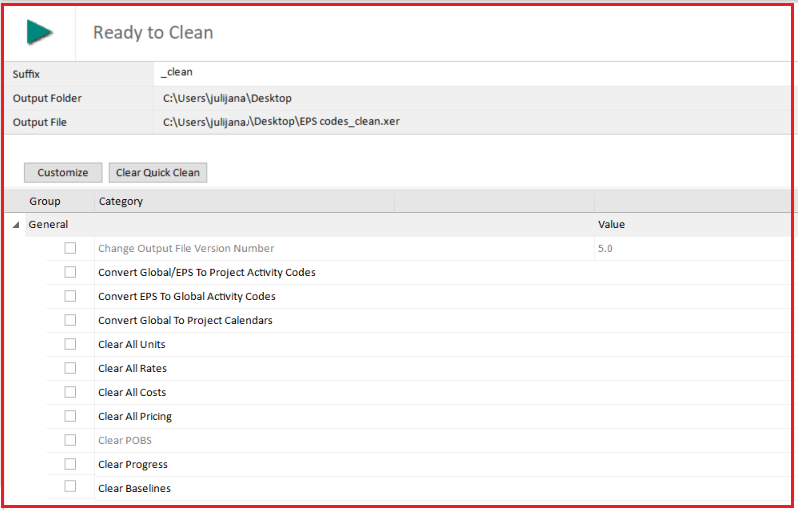
- Add additional options to the Quick Clean, by selecting the “Customize” button
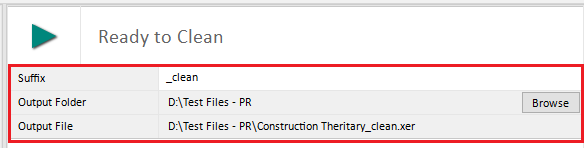
- Define the output folder where the modified file will be saved as well as the new name.
- Run the cleaning process.
Clean project parameters with Batch Clean
Import file location
In ScheduleCleaner™ you can import project data exported from Oracle Primavera® P6 in XER or XML (Oracle proprietary format) file format.
There are three ways how you can open file:
- From File click to Add File and select file from your location
- Drag and drop file in main window of ScheduleCleaner™.
- From Clean ribbon click on the Add icon and select file from any location.
Create template
A template is a form in ScheduleCleaner™, where user can specify which action or combination of actions will be performed, location of the newly created file will be saved, the suffix that will be added to the newly created file, etc.
The process of creating new template is as follow:
- Click on the “New” button from the “Templates” category within “Template” ribbon;
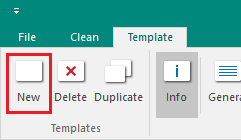
- “Info” button will be selected by default. On the right panel you can see fields with the main template’s information;
- Define the templates parameters such as: “Name”, “Description”, “Output Suffix” for the new file, “Output Folder” where the new file will be saved;
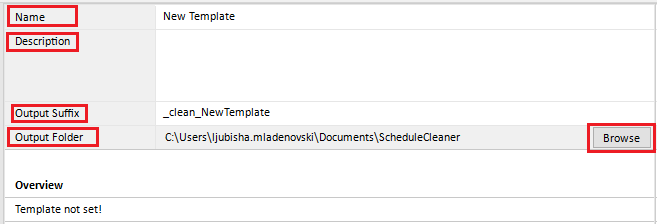
- To define which features will be included in the template:
- Click on the “General” icon to include features from General category;
- Click on the “Remove” icon and select which project categories will be removed from the project plan;
- Click on the “Mask” icon, select which project categories will be masked and the mask value;
- Click on the “Prefix/Suffix” icon, select which project categories will receive prefix and/or suffix and the values for prefix and/or suffix;
- Click on the “Filter” icon, apply operators and insert values that will define the set of rules for filtering the data in the Mask and Prefix/Suffix category.
- In the “Overview” section you can view the feature(s) and the categories that are assigned to the template.
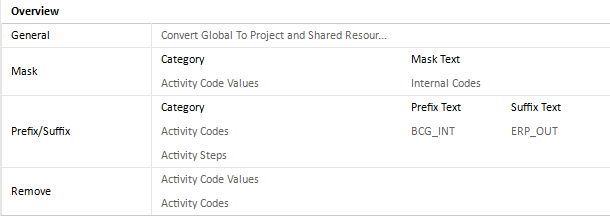
Apply template for cleaning and Clean project files
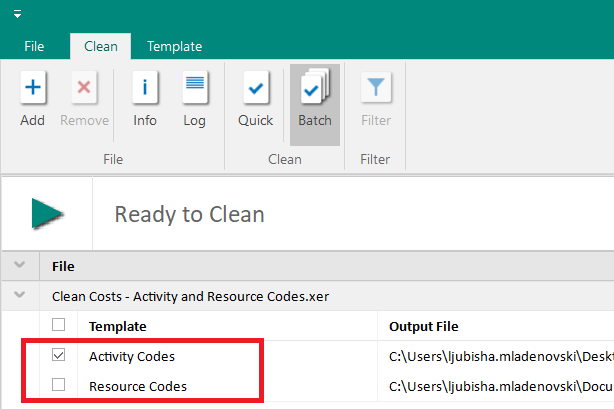
Once the template(s) is ready, you can choose which template will be applied to the imported files in ScheduleCleaner. For that purpose, perform the following steps:
- In the Clean tab select the Batch option.
- Select the template according to which the file will be cleared.
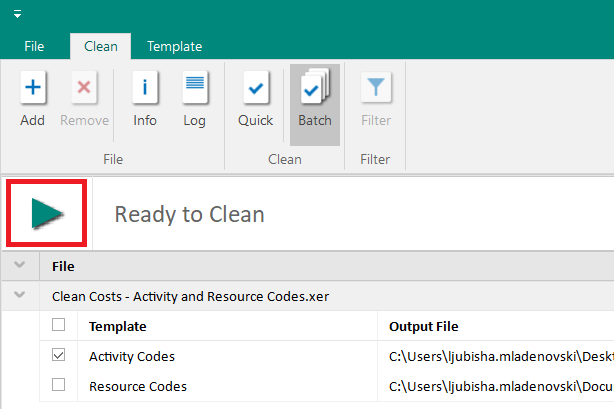
- Run the cleaning process.
General category
You can use the available functionalities in the “General” category to easy clean some categories in the project plan. This option gives you the opportunity to apply multiple rules at one for cleaning the file.
The following functionalities are available for use:
- Convert Global Calendars to Project Calendars
- Clear All Units – Remove all type of units for assigned resources in the project plan.
- Clear All Rates – Remove all type of rates for assigned resources in the project plan.
- Clear All Costs – Remove project funding, budget changes, spending and benefit plans, project expenses and assignment costs from the project.
- Clear All Pricing – Remove process for resources and roles, assigned in the project plan.
- Output File Version Number – Change the output version in the file’s header to lower P6 version than the current one. (Applies to XER files only)
- Clear POBS – Remove “Performing Organizational Breakdown structure” information from the project plan. (Applies to XER files only)
- Convert Activity Codes – Convert “Global” and “EPS” activity codes to “Project” activity codes.
- Convert Activity Codes – Convert “EPS” and “Global” activity codes.
- Clear Progress - Remove the progress parameters from the project plan.
- Clear Baselines – Remove project baselines (Applies to XML files only)
The steps that should be undertaken for performing the required functionality are:
- Choose the required template from the created template list;
- Select the check-boxes before desired cleaning method;
- Go to “Clean” ribbon
- Select the file(s) that should be modified.
- In “General Clean” view, select the templates that will be applied.
- Click on the “Clean” button in the ribbon and have overview of the actions that will be undertaken.
- Click on the “Start” button, scheduled processes to be performed.
Create and Apply Filter
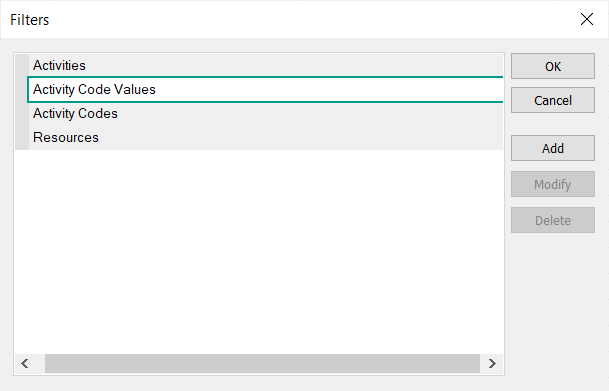
You can use filters to separate out the items that meets certain criteria for removing, masking, etc. User-defined filters can be created for the following categories: Activities, Activities Codes Values, Activities Codes and Resources.
User-defined filters can be applied when:
- Cleaning All Costs in Quick Clean;
- Cleaning All Costs in Batch Clean;
- Mask Activities, Activities Codes Values, Activities Codes and Resources in Batch Clean;
- Insert Prefix/Suffix for Activities, Activities Codes Values, Activities Codes and Resources in Batch Clean.
Create User-Defined Filters
In ScheduleCleaner™, you can create user-defined filters that can be saved and applied to specific categories. In order to create a custom filter, you need to take the following steps:
- In the Clean ribbon, click on the Filter option (same actions can be performed from the Template ribbon).
- Select the category under which the new filter will be created.
- In the Filters dialog box, click on the Add button.
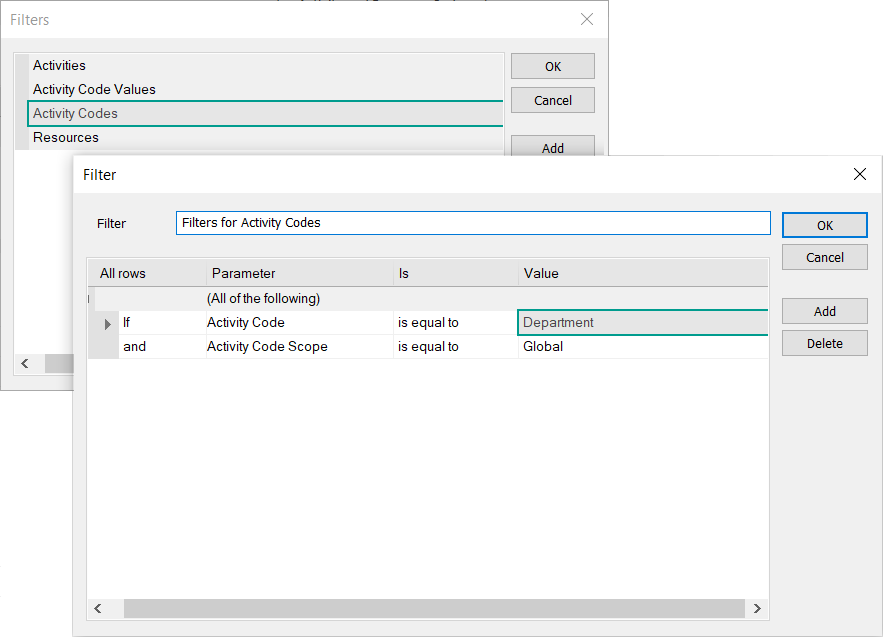
- A new Filter dialog opens, and add a name for the new filter.
- Fill in the necessary filter criteria fields:
- Filter field – Insert the filter’s name;
- Parameters field – Displays the chosen parameter for each filter criteria. (e.g. Activity Code);
- Is field – Contains the corresponding operator for a specific filter’s criteria;
- Value fields – Presents the values for each filter criteria.
- To add another filtering criteria, click on the Add button and repeat the actions from the previous step;
- In order for the filter criteria to be saved, click OK.
Note: You can use one of the following options to show items when the filter is created:
- All of the following: display the items that meet all statement conditions in the filter.
- Any of the following: display the items if any of the statement conditions in the filter is true.
Modify existing User-defined filter
In ScheduleCleaner™ you can modify the existing user-defined filters. To change the filter criteria for a given user-defined filter, do the following steps:
- Select the desired filter from the Filters dialog.
- Click on the Modify button.
- Change filter criteria or update with a new condition.
- Click OK to save the changes.
Apply user-defined filter
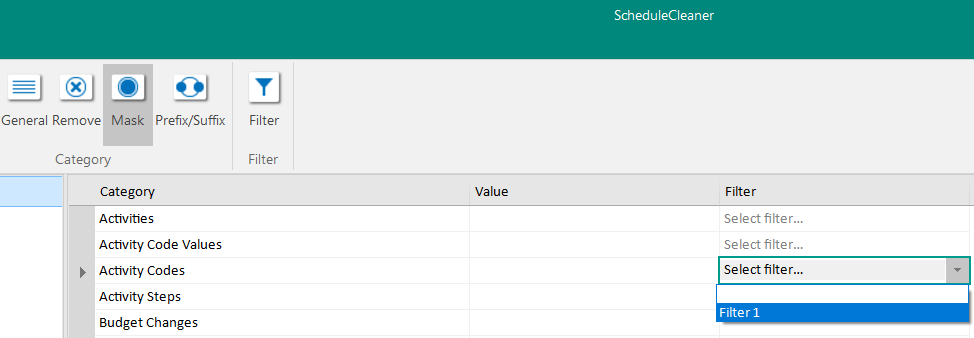
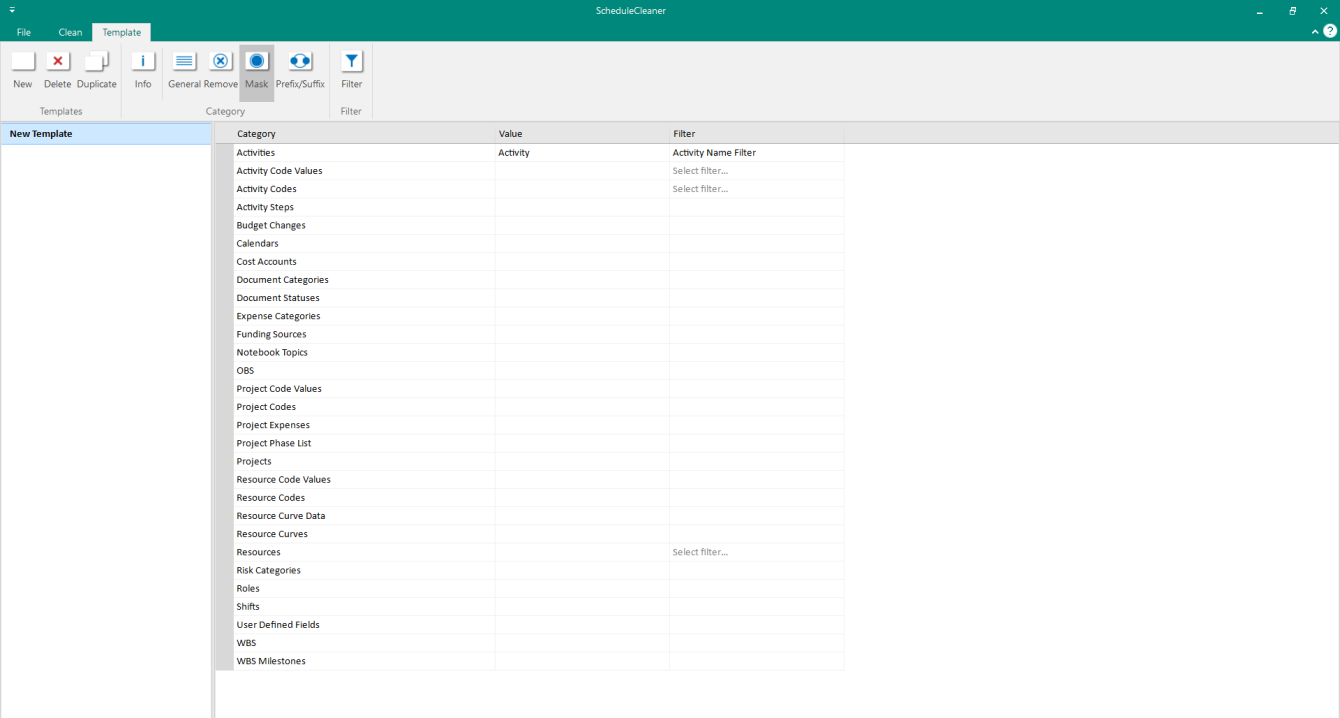
Filter can be applied on certain categories from the project plan. In ScheduleCleaner™ you can apply on those categories that have the “Filter” column. The project fields that are available for filtering contains the text “Select filter…”, as it is presented on the image below.
Remove
“Remove” functionality allows you to clear the sensitive data from the project plan, such as Resources, Costs, Activity Steps and Codes, etc.
To remove different project data, perform the following steps:
- Select the template that will contain the functionality for data removing.
- Choose which project categories will be removed and will not exist in the newly created project plan.
The steps that should be undertaken for performing the required functionality are:
- Go to “Clean” ribbon;
- Click on the “Batch” button;
- Expand the appropriate file(s) to view the available templates;
- Select the template(s) that contain the “Remove” functionality;
- Click on the “Start” button to perform the scheduled process.
Example:
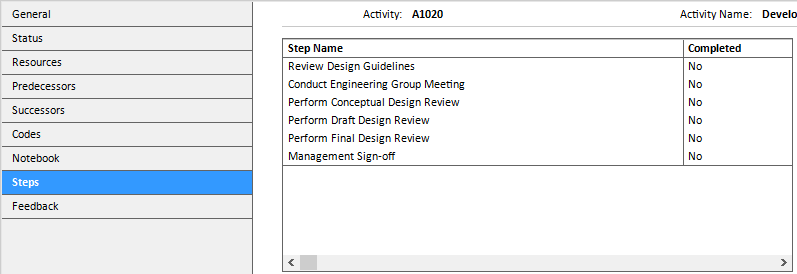
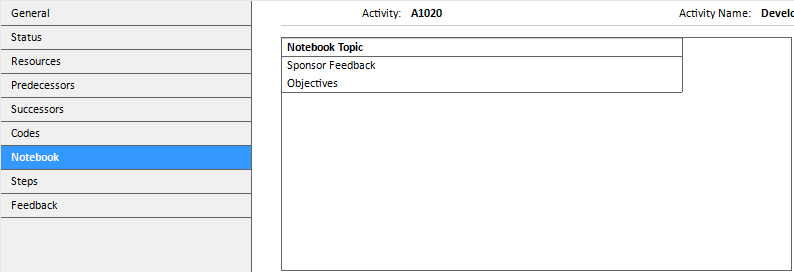
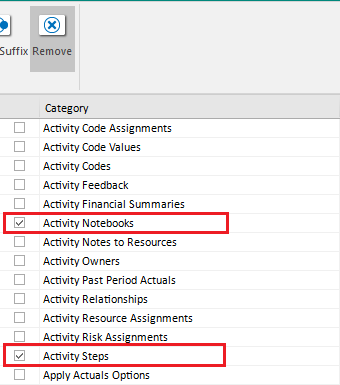
In the following example, demonstration of removing activity steps and activity notebooks will be presented.
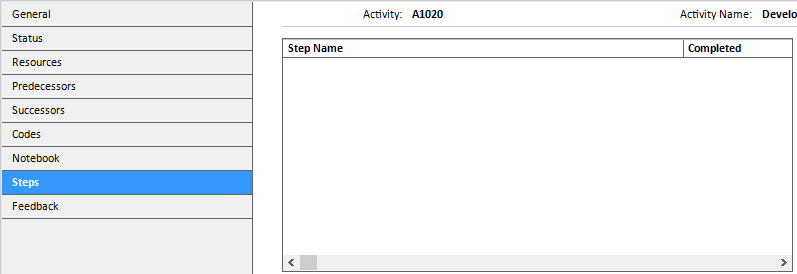
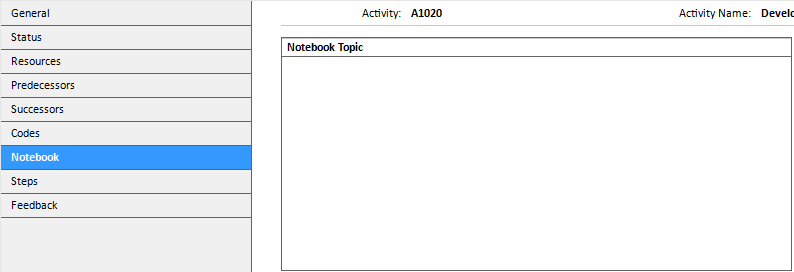
The look of the “Steps” and “Notebooks” tabs in ScheduleCleaner is presented on the images below.
Step 1.
In the template’s section, user has to select or create template for removing particular categories. For that purpose, the check-box in front of the appropriate template should be selected.
Step 2.
In the “Clean” ribbon, user should click on the “Batch” icon. Once this is done, the list of all imported files will be presented. Expand the file that will be modified and select the template for inserting prefix and/or suffix (in this example, it is “Prefix/Suffix WBS”).
Step 3.
Once all preparations are done, modifying process can start. User should click on the “Start” button in order to complete the process, as it is presented on the image below.
Mask
“Mask” or data anonymization is process of protecting sensitive data in the project plan by encoding personally identifiable information from the project. ScheduleCleaner™ gives the possibility to sophisticatedly hide information that is considered as classified and send the modified project plan to the stakeholders.
Masking process in ScheduleCleaner™ includes inserting value that will cover the real one. Inserting process is done in several steps:
- Select the template that will contain the masking process;
- Select which category will be masked;
- In the “Value” field, insert the parameter that will override the original values in the specified category.
- Apply filters to Activities, Activity Codes Values, Activity Codes and Resources.
The steps that should be undertaken for performing the required functionality are:
- Go to “Clean” ribbon;
- Click on the “Batch” button;
- Expand the appropriate file(s) to view the available templates;
- Select the template(s) that contain the “Mask” functionality;
- Click on the “Start” button to perform the scheduled process.
Apply filters when masking data:
Filtering is the process that will allow users to view specific rows from the filtered categories, while hiding the others.
In the Mask category, users will be able to apply filters to Activities, Activity Codes Values, Activity Codes and Resources.
The filtering process in ScheduleCleaner™ consists of selecting parameters, applying operators and inserting values that will define the set of rules for filtering the data.
To create filters perform the steps from below:
- Click on the “Filter” button
- Select one of the categories (Activities, Activity Codes Values, Activity Codes and Resources) that support the filtering option;
- Select the parameter, operator and insert the value for the filter.
- Insert a name for the filter and select OK.
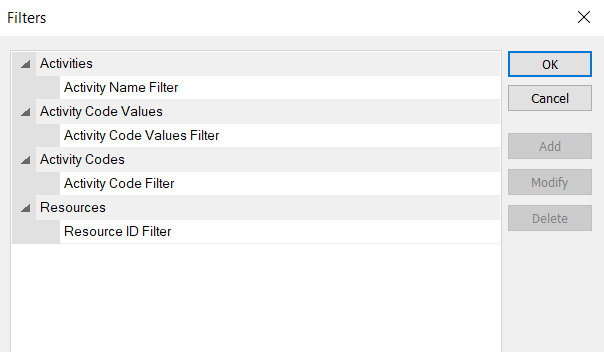
The filter will be saved and will be available for use.
To apply the created filters in the Mask category in ScheduleCleaner™ perform the steps from below:
- Select one of the categories (Activities, Activity Codes Values, Activity Codes and Resources) that support the filtering option.
- From the drop-down menu, select one of the previously created filters.
- In the “Value” field, insert the parameter that will override the original values in the specified category.
Example of masking data:
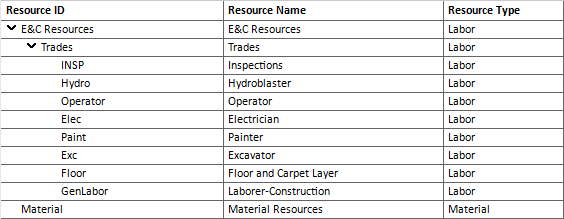
In the following example, demonstration of masking random selected project’s category will be presented. The task is to mask all resources that are assigned in the project plan. That means that the values from the “Resource Name” column within Resource tab in ScheduleCleaner will be replaced with value, defined by the user.
The look of the project’s resource table in ScheduleCleaner is presented on the image below.
Step 1.
In the template’s section, user has to select or create template for mask resources. For that purpose, the check-box in front of the appropriate template should be selected and values for mask should be inserted.
Step 2.
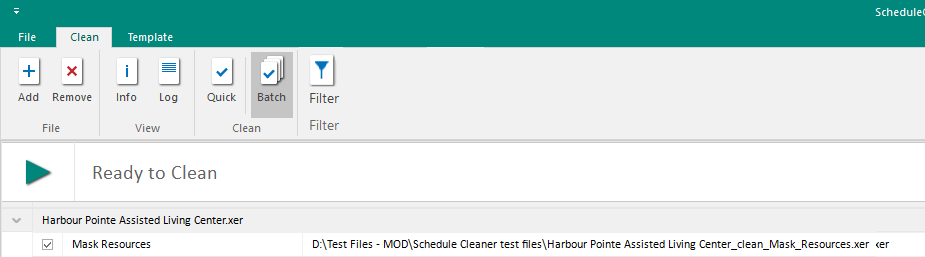
In the “Clean” ribbon, user should click on the “Batch” icon. Once this is done, the list of all imported files will be presented. Expand the file that will be modified and select the template for inserting prefix and/or suffix (in this example, it is “Prefix/Suffix WBS”).
Step 3.
Once all preparations are done, modifying process can start. User should click on the “Start” button in order to complete the process, as it is presented on the image below. Step 4.
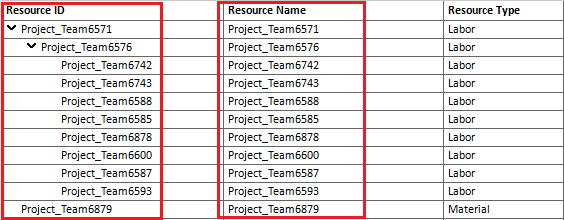
The final result of the modifying process is presented on the image below. The “Resource ID” and “Resource Name” are modified, receiving the specified mask value.
Prefix/Suffix
Inserting prefix or suffix to different categories in the project plan, can give additional information to the person who reads the information and acts according them.
The steps for inserting prefix/suffix in the project are:
- Select the template that will contain adding prefix/suffix;
- Select the appropriate category that will receive prefix or suffix;
- In the appropriate fields insert the terms that will be words’ prefix or suffix.
- Apply filters to Activities, Activity Codes Values, Activity Codes and Resources.
The steps that should be undertaken for performing the required functionality are:
- Go to “Clean” ribbon;
- Click on the “Batch” button;
- Expand the appropriate file(s) to view the available templates;
- Select the template(s) that contain the “Prefix/Suffix” functionality.
- Click on the “Start” button to perform the scheduled process.
Apply filters when adding prefix/suffix:
Filtering is the process that will allow users to view specific rows from the filtered categories, while hiding the others.
In the Mask category, users will be able to apply filters to Activities, Activity Codes Values, Activity Codes and Resources.
The filtering process in ScheduleCleaner™ consists of selecting parameters, applying operators and inserting values that will define the set of rules for filtering the data. To create filters perform the steps from below:
- Click on the “Filter” button
- Select one of the categories (Activities, Activity Codes Values, Activity Codes and Resources) that support the filtering option;
- Select the parameter, operator and insert the value for the filter.
- Insert a name for the filter and select OK.
The filter will be saved and will be available for use.
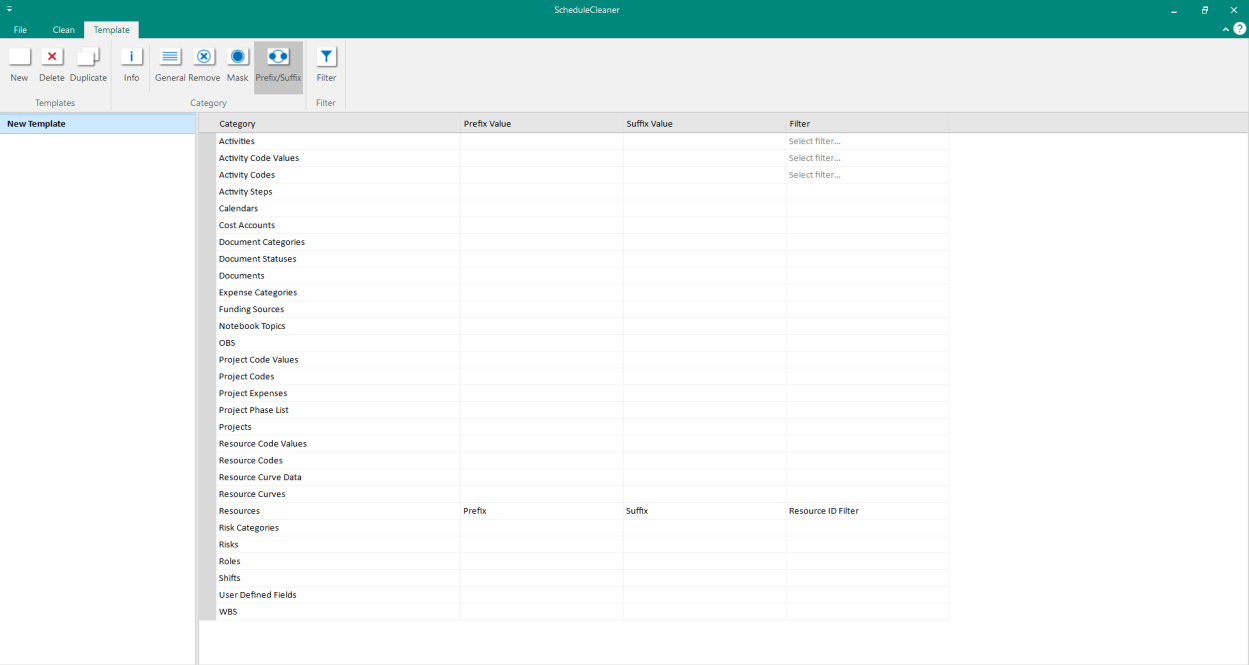
To apply the created filters in the Prefix/Suffix category in ScheduleCleaner™ perform the steps from below:
- Select one of the categories (Activities, Activity Codes Values, Activity Codes and Resources) that support the filtering option.
- From the drop down menu, select one of the previously created filters.
- In the “Value” field, insert the parameter that will override the original values in the specified category.
Example of adding prefix/suffix:
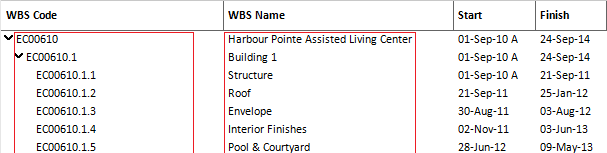
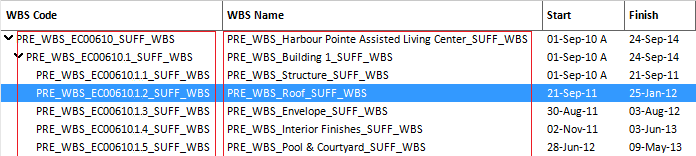
In the following example, demonstration of inserting prefix and suffix in random selected project’s category will be presented. The “WBS Name” and “WBS Code” columns from the project plan will receive the “PRE_WBS” prefix and “_SUFF_WBS” suffix. In real life situations, users can choose the most appropriate values for prefix and suffix.
The look of the project’s WBS table in ScheduleCleaner is presented on the image below.
Step 1.
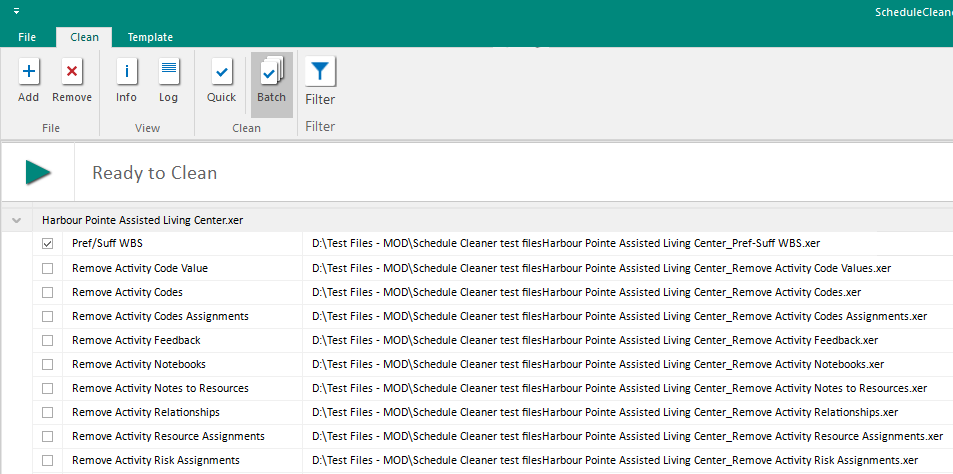
In the template’s section, user has to select or create template for inserting prefix and/or suffix. For that purpose, the check-box in front of the appropriate template should be selected and values for prefix and/or suffix should be inserted.
Step 2. In the “Clean” ribbon, user should click on the “Batch” icon. Once this is done, the list of all imported files will be presented. Expand the file that will be modified and select the template for inserting prefix and/or suffix (in this example, it is “Prefix/Suffix WBS”).
Step 3.
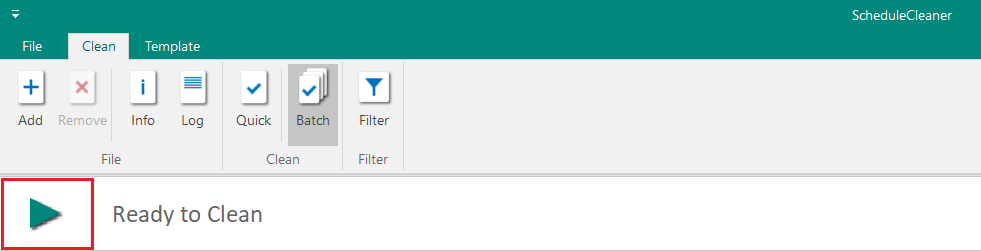
Once all preparations are done, modifying process can start. User should click on the “Start” button in order to complete the process, as it is presented on the image below.
Step 4.
The final result of the modifying process is presented on the image below. The “WBS Code” and “WBS Name” are modified, receiving the specified values for prefix and suffix.
Manage Templates
If the user-defined template meets the particular aspects of protecting the project plan information, the user can export the template’s parameters into a file and share it with the other team members. In case other project participants create templates that are suitable for some teams, these users will import the previously created templates and work instantly.
There are several ways to manage templates in ScheduleCleaner:
- Import template.
- Export template.
- Remove a template.
Import Template
In ScheduleCleaner you can use custom made template made by other project participants, by importing.sctx file format, where all template’s settings are saved.
To import custom template, follow these steps:
- From File Menu, click on the “Templates” submenu.
- Click on the Import Option.
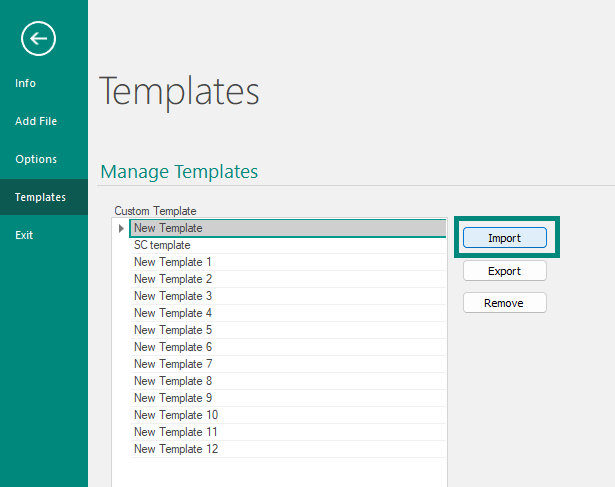
- Choose an SCTX file from the desired location, that contains template parameters.
- Click on the Open button to import the template.
Export Template
In ScheduleCleaner you can export the template that you have made, by saving the template’s settings into.sctx file format.
To export a custom template, follow these steps:
- From File Menu, click on the “Templates” submenu.
- Click on the Export Option.
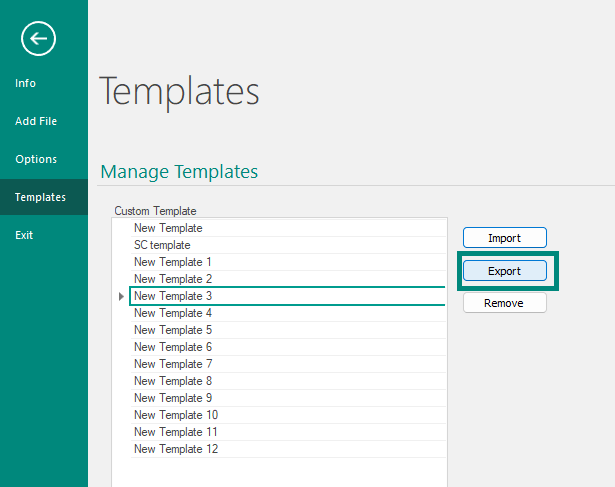
- Choose the desired location where the file will be saved.
- Click on the Save button to export the template as an SCTX file.
Remove Template
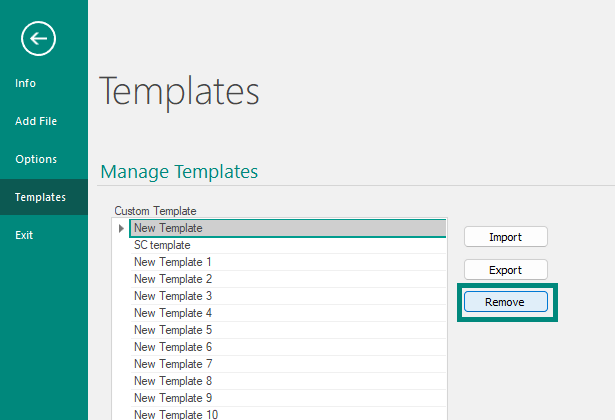
In ScheduleCleaner there is an option to remove unnecessary templates from the application. For this purpose, in the Templates section, select the template that is no longer needed and click on the “Remove” button.
User Preferences
Options
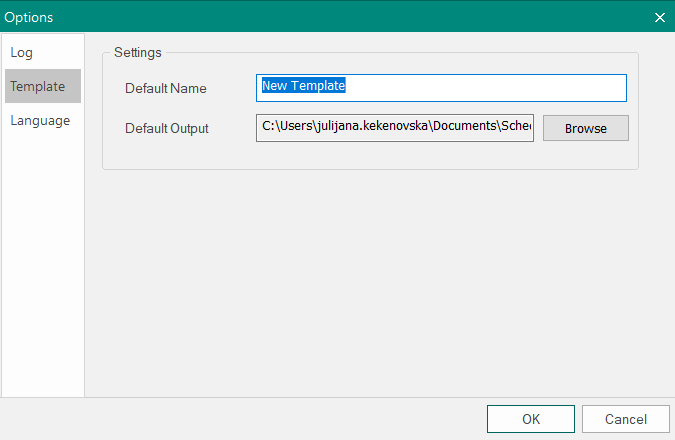
Options dialog box will help the users to specify their preferences, which includes the default name for new templates, location for the output folder, settings for saving logs, etc.
“Template” tab
The “Templates” tab will allow users to specify the default name for the newly created templates as well as the default output folder for the newly created files.
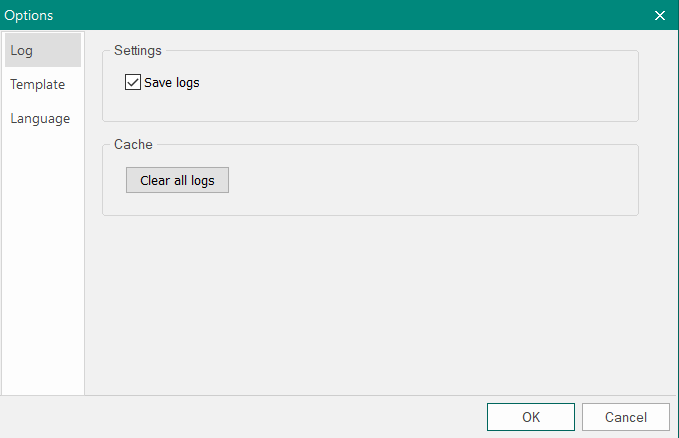
“Log” tab
The “Log” tab gives the opportunity to user to save the events that occur in the application. Once, there is no need from these information, using the “Clear all Logs” feature, they will be removed from application.
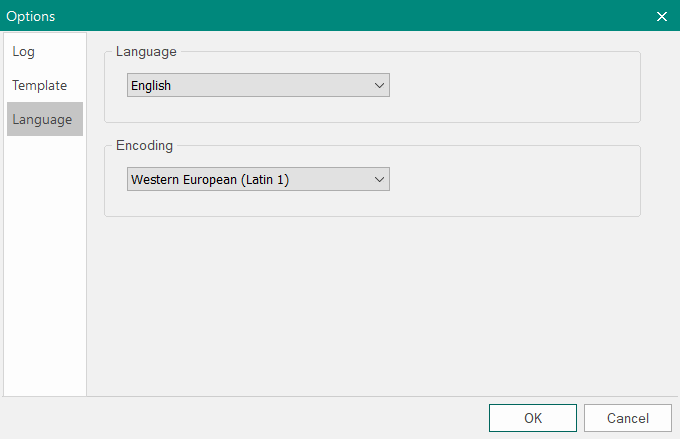
“Language” tab
The encoding standard helps the program determine how to represent the text (alphabetical characters, numbers, and other symbols). When you share XER/XML files with people who work in other languages, or other computer systems, you may need to choose an encoding standard so when you open the file it would be readable.
ScheduleCleaner™ can be used in French; Spanish; Italian; German; Chinese Simplified; Korean; Japanese and Russian language.